
Content with Notebooks#
You can create content with Jupyter Notebooks. This page demonstrates how
notebook content — code blocks, outputs, and interactive elements — renders
with quantecon-book-theme.
Markdown + notebooks#
As it is markdown, you can embed images, HTML, etc into your posts!

You can also $add_{math}$ and
$$ math^{blocks} $$
or
$$ \begin{align*} \mbox{mean} la_{tex} \ \ math blocks \end{align*} $$
But make sure you $Escape $your $dollar signs $you want to keep!
Code blocks and image outputs#
Jupyter Book will also embed your code blocks and output in your book. For example, here’s some sample Matplotlib code:
from matplotlib import rcParams, cycler
import matplotlib.pyplot as plt
import numpy as np
plt.ion()
<contextlib.ExitStack at 0x7f46b4154a50>
# Fixing random state for reproducibility
np.random.seed(19680801)

N = 10
data = [np.logspace(0, 1, 100) + np.random.randn(100) + ii for ii in range(N)]
data = np.array(data).T
cmap = plt.cm.coolwarm
rcParams['axes.prop_cycle'] = cycler(color=cmap(np.linspace(0, 1, N)))


from matplotlib.lines import Line2D
custom_lines = [Line2D([0], [0], color=cmap(0.), lw=4),
                Line2D([0], [0], color=cmap(.5), lw=4),
                Line2D([0], [0], color=cmap(1.), lw=4)]

fig, ax = plt.subplots(figsize=(10, 5))
lines = ax.plot(data)
ax.legend(custom_lines, ['Cold', 'Medium', 'Hot']);
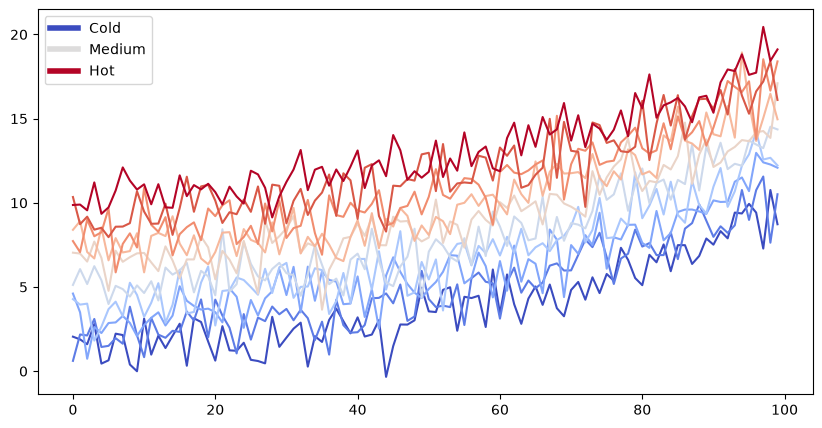
Note that the image above is captured and displayed by Jekyll.
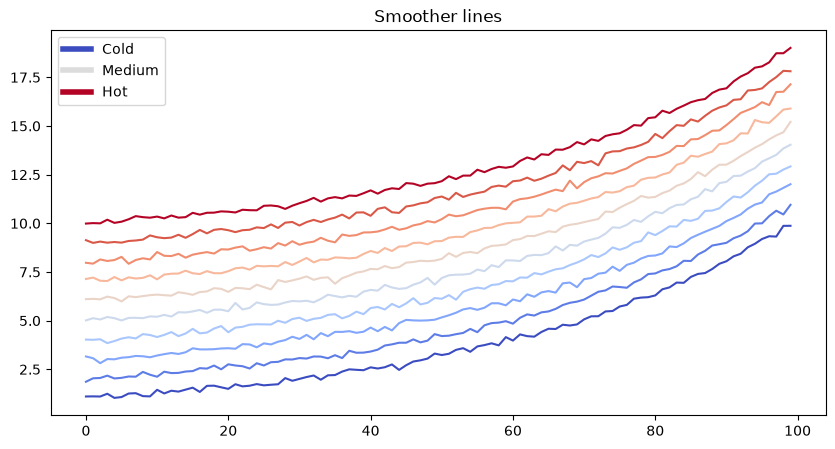
Tip
You can also pop out content to the margin For more information on how to do this, check out Layout and Page Elements.
print("this works for code cells too, if you add a `margin` tag to them")
this works for code cells too, if you add a `margin` tag to them
# You can also include enriched outputs like Math
from IPython.display import Math
Math("\sum_{i=0}^n i^2 = \frac{(n^2+n)(2n+1)}{6}")
<>:3: SyntaxWarning: invalid escape sequence '\s'
<>:3: SyntaxWarning: invalid escape sequence '\s'
/tmp/ipykernel_2363/3100786677.py:3: SyntaxWarning: invalid escape sequence '\s'
  Math("\sum_{i=0}^n i^2 = \frac{(n^2+n)(2n+1)}{6}")
Removing content before publishing#
You can remove some content before publishing your book to the web. For example, in the original notebook there used to be a cell below…
You can also remove only the code so that images and other output still show up.
Below we’ll only display an image. It was generated with Python code in a cell, which you can see in the original notebook
thisvariable = "this plot *will* show up in the textbook."

fig, ax = plt.subplots()
x = np.random.randn(100)
y = np.random.randn(100)
ax.scatter(x, y, s=np.abs(x*100), c=x, cmap=plt.cm.coolwarm)
ax.text(0, .5, thisvariable, fontsize=20, transform=ax.transAxes)
ax.set_axis_off()
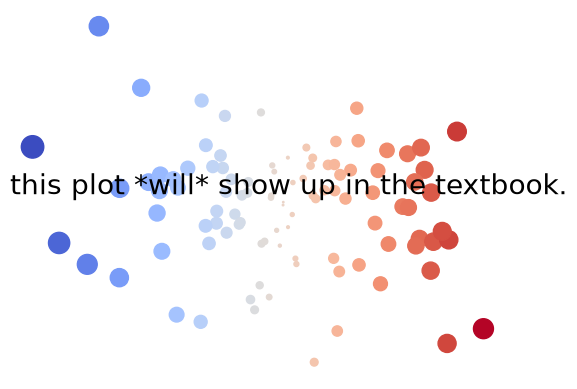
And here we’ll only display a Pandas DataFrame.
import pandas as pd
pd.DataFrame([['hi', 'there'], ['this', 'is'], ['a', 'DataFrame']], columns=['Word A', 'Word B'])
| Word A | Word B | |
|---|---|---|
| 0 | hi | there |
| 1 | this | is |
| 2 | a | DataFrame |
Testing popouts before headers
Interactive outputs#
We can do the same for interactive material. Below we’ll display a map using folium. When the notebook is converted to Markdown, the code for creating the interactive map is retained.
Note that this will only work for some packages. They need to be able to output standalone HTML/JavaScript, and not depend on an underlying Python kernel to work.
import folium
m = folium.Map(
    location=[45.372, -121.6972],
    zoom_start=12,
    tiles='OpenStreetMap'
)

folium.Marker(
    location=[45.3288, -121.6625],
    popup='Mt. Hood Meadows',
    icon=folium.Icon(icon='cloud')
).add_to(m)

folium.Marker(
    location=[45.3311, -121.7113],
    popup='Timberline Lodge',
    icon=folium.Icon(color='green')
).add_to(m)

folium.Marker(
    location=[45.3300, -121.6823],
    popup='Some Other Location',
    icon=folium.Icon(color='red', icon='info-sign')
).add_to(m)


m
Rich outputs from notebook cells#
Because notebooks have rich text outputs, you can store these in your Jupyter Book as well!
# The ! causes this to run as a shell command
!jupyter -h
usage: jupyter [-h] [--version] [--config-dir] [--data-dir] [--runtime-dir]
               [--paths] [--json] [--debug]
               [subcommand]

Jupyter: Interactive Computing

positional arguments:
  subcommand     the subcommand to launch

options:
  -h, --help     show this help message and exit
  --version      show the versions of core jupyter packages and exit
  --config-dir   show Jupyter config dir
  --data-dir     show Jupyter data dir
  --runtime-dir  show Jupyter runtime dir
  --paths        show all Jupyter paths. Add --json for machine-readable
                 format.
  --json         output paths as machine-readable json
  --debug        output debug information about paths

Available subcommands: execute kernel kernelspec migrate run troubleshoot
trust