Submitting a milestone invoice
This walks through filing an invoice for a milestone delivered on a
milestone contract. The flow is the same as the
timesheet tutorial — an issue you draft, then
/validate and /submit to file it — but the entry format and the
"what you're claiming" semantics are different.
Read this if you're paid by milestone (a fixed amount per deliverable); if your contract is hourly, see the timesheet guide instead.
1. Find the milestone you're claiming
Open your contract file (in contracts/ in your repo) and find the
milestone you've delivered. Each milestone has four fields:
id— the milestone number (e.g.3)date— the planned delivery dateamount— the payment amountdescription— what the milestone covers
milestones:
  - id: 1
    date: 2025-09-15
    amount: 77000
    description: Monthly Payment — September
  - id: 2
    date: 2025-10-15
    amount: 77000
    description: Monthly Payment — October
  - id: 3
    date: 2025-11-15
    amount: 77000
    description: Monthly Payment — November
You'll cite the id (and the matching amount) when you file. Your
administrator cross-checks both against the contract during PR review.
2. Open a draft
Throughout this walkthrough we'll use a worked example: you've
delivered milestone 3 (a monthly payment of 77000 JPY, dated
2026-07-15) and you're about to file the invoice.
Go to your contractor repo's Issues tab and click New Issue. Pick the 🎯 Milestone Invoice template.
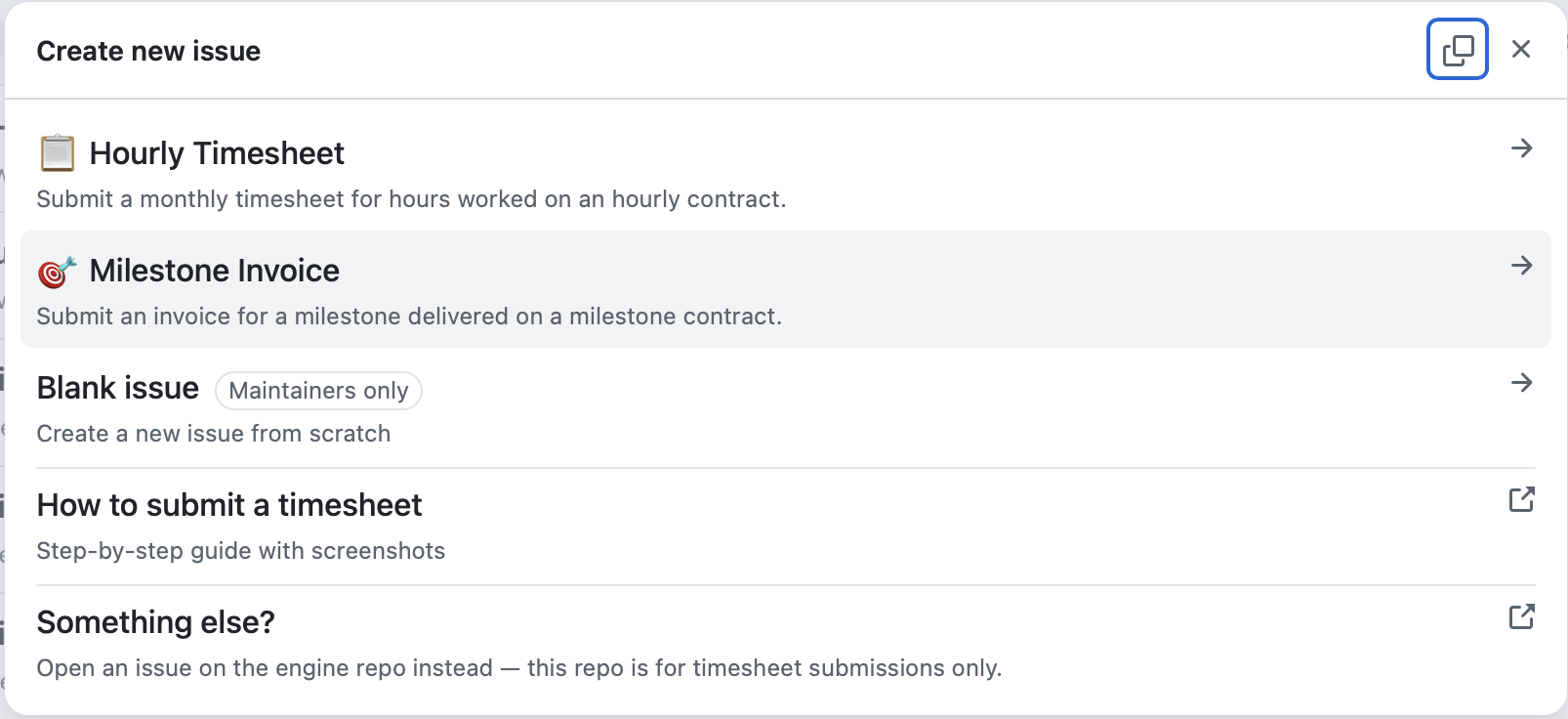
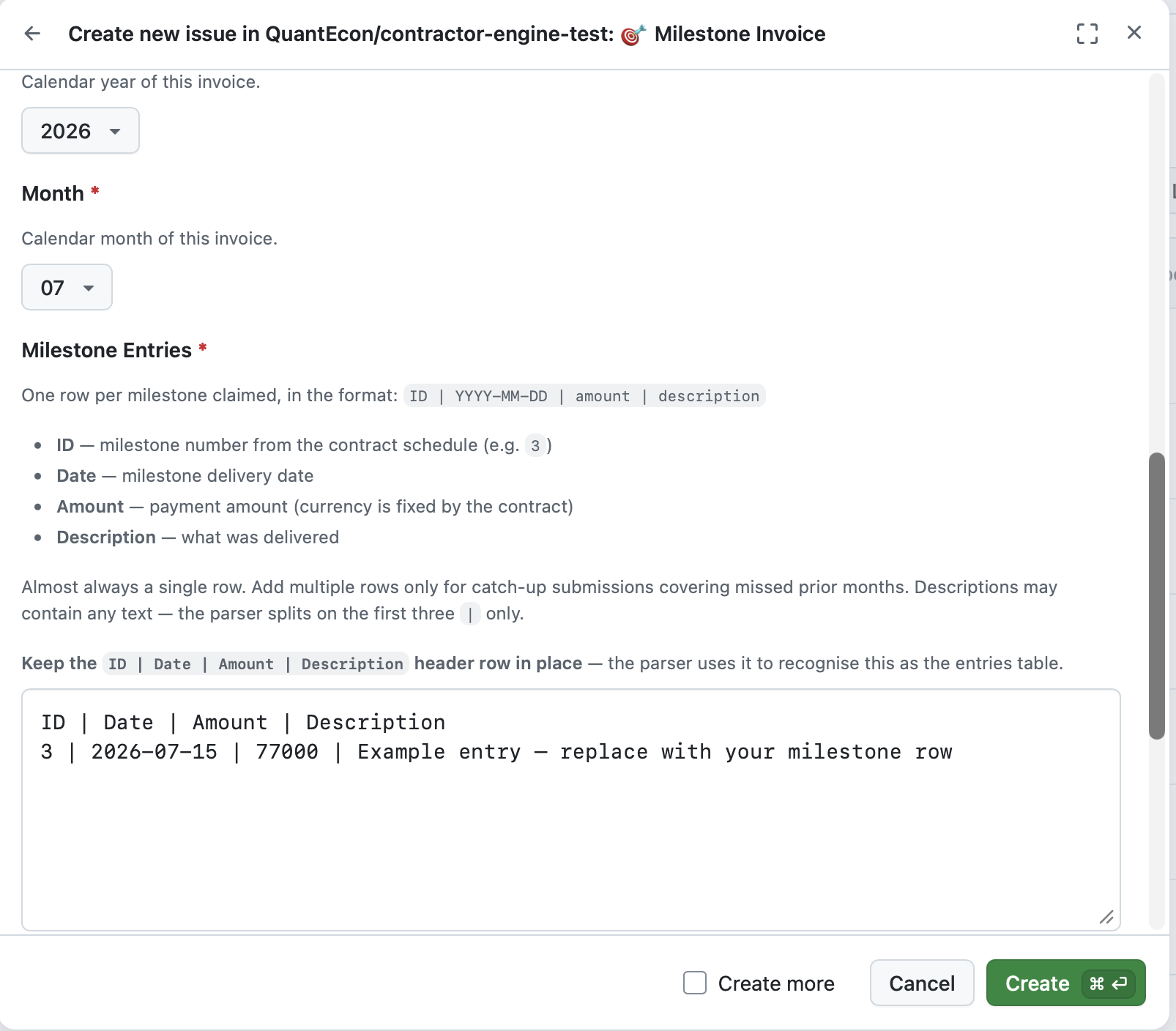
Fill in the form:
- Contract — pick the milestone contract this invoice applies to.
Only milestone contracts appear here; hourly contracts are filtered
out. (In the worked example:
QE-IUJ-2025-002.) - Year + Month — the period this invoice is filed against.
Usually the month you delivered the milestone, but the engine also
accepts out-of-period dates for catch-up submissions (see below). (In
the worked example:
2026and07.) - Milestone Entries — leave the seeded
ID | Date | Amount | Descriptiontable as-is for now; you'll add your real row after the issue exists. - Confirmation — tick the box.
Click Submit new issue.
Nothing is filed yet
Creating the issue does not create a PR. The issue is a draft — yours to edit until you're ready to submit.
3. Add the milestone row
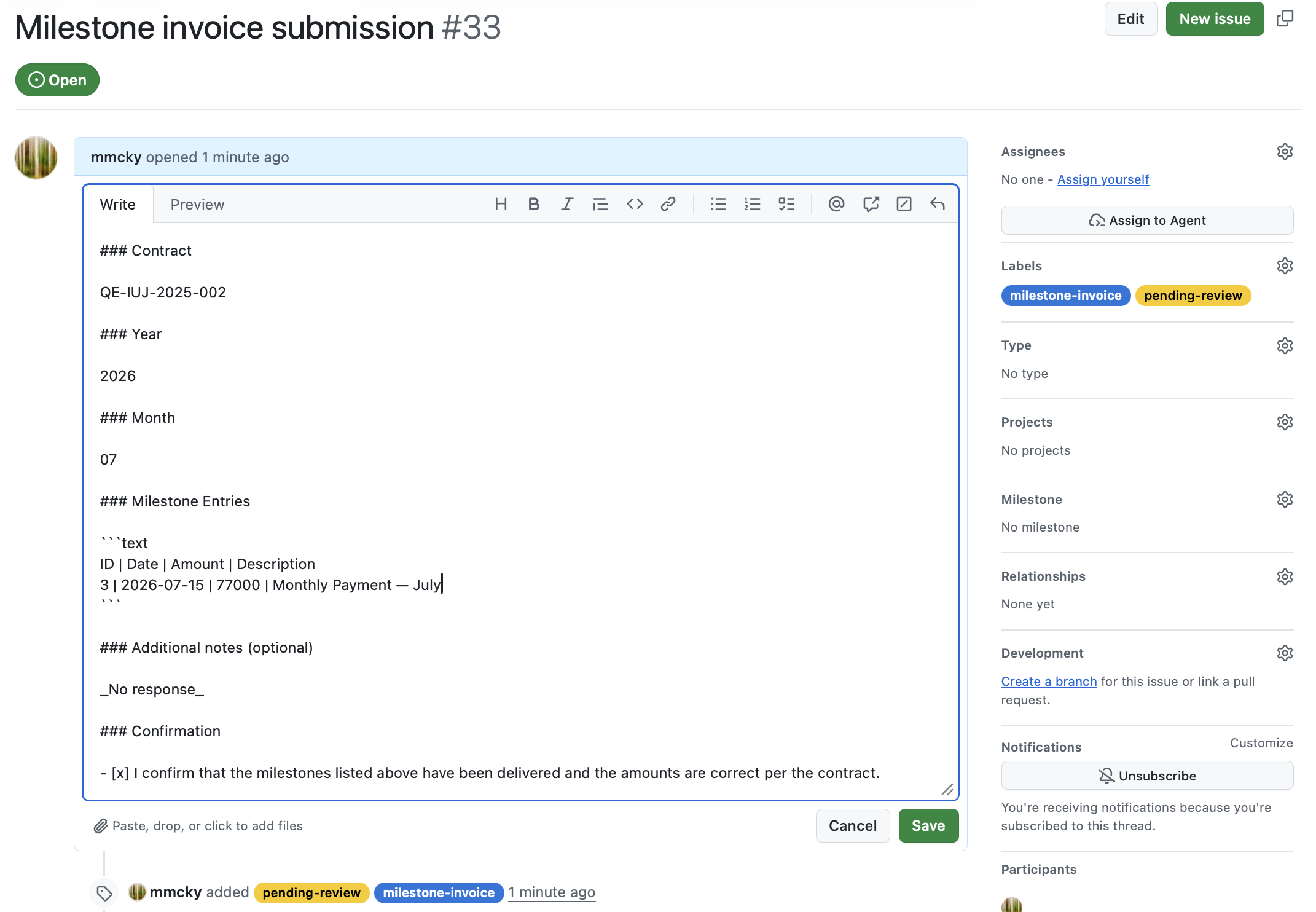
Open the issue, Edit the body, and add one row per milestone you're claiming in the format:
ID | YYYY-MM-DD | amount | description
So for the worked example (milestone 3, delivered 2026-07-15):
ID | Date | Amount | Description
3 | 2026-07-15 | 77000 | Monthly Payment — July
Things to know:
- Keep the header row (
ID | Date | Amount | Description). The parser uses it to recognise the entries table. - One row per milestone. Usually a single row — one milestone delivered, one row.
- The amount must match the contract's
amountfor that milestone. Your administrator verifies this during PR review. - No currency in the row — currency is fixed by the contract.
- Descriptions can contain anything including pipes. The parser
splits on the first three
|only.
Catch-up submissions
If you missed filing for a prior month (e.g. you delivered milestone 2
in October but never filed), you can include multiple rows in one
submission. Each row references a different milestone id and date:
ID | Date | Amount | Description
2 | 2025-10-15 | 77000 | Monthly Payment — October
3 | 2025-11-15 | 77000 | Monthly Payment — November
Unlike timesheets, milestone-invoice dates are not required to fall inside the period selected in the form — exactly because catch-up submissions reference older dates.
4. Check your work with /validate
Post a comment on the issue with just:
/validate
After a few seconds, a bot reply appears with the parse result.
On success, you'll see a confirmation with computed totals:
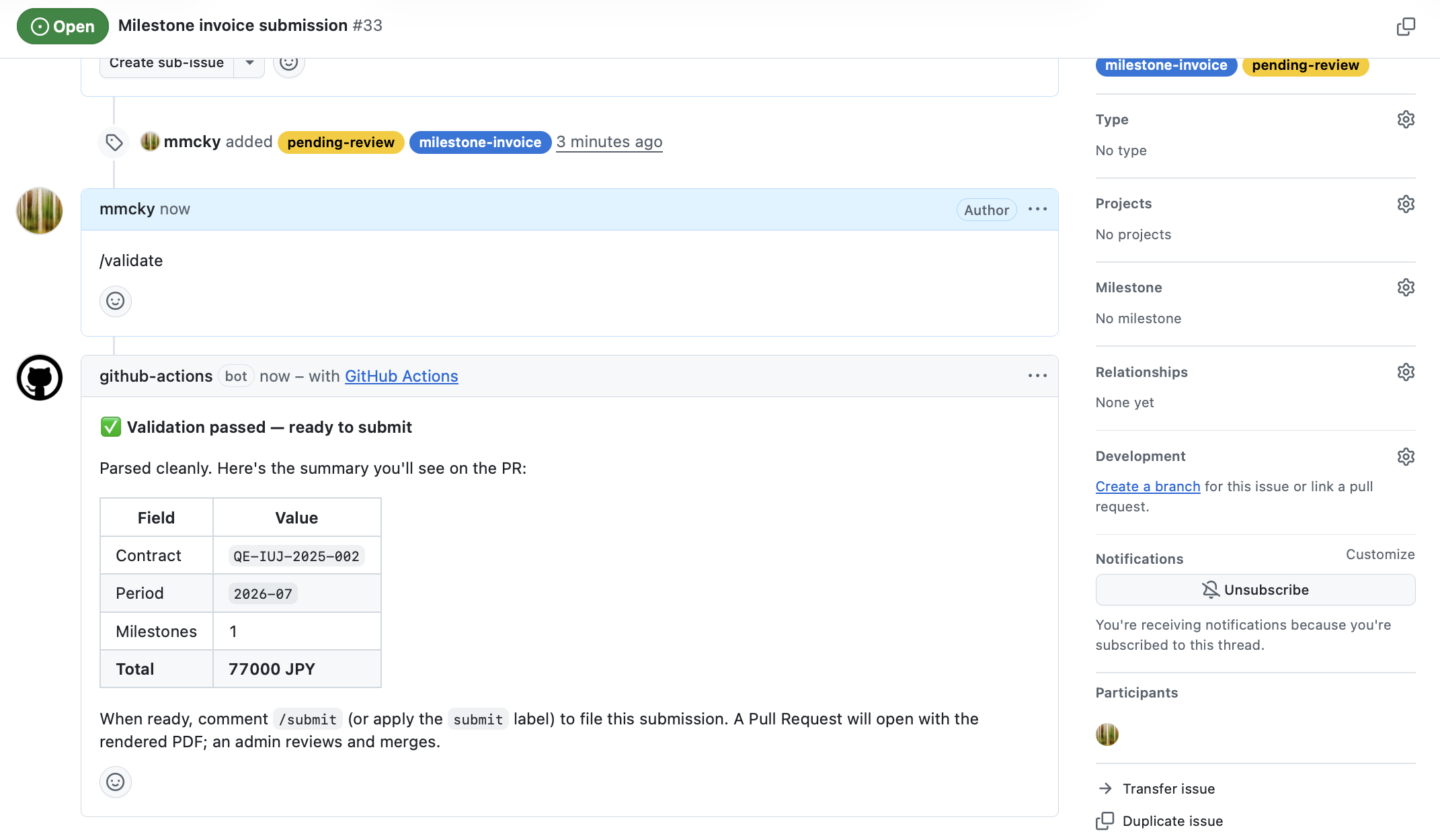
The totals are calculated from the rows you entered, in the contract's currency.
On failure, you'll see a red-X reply pointing at specific lines:
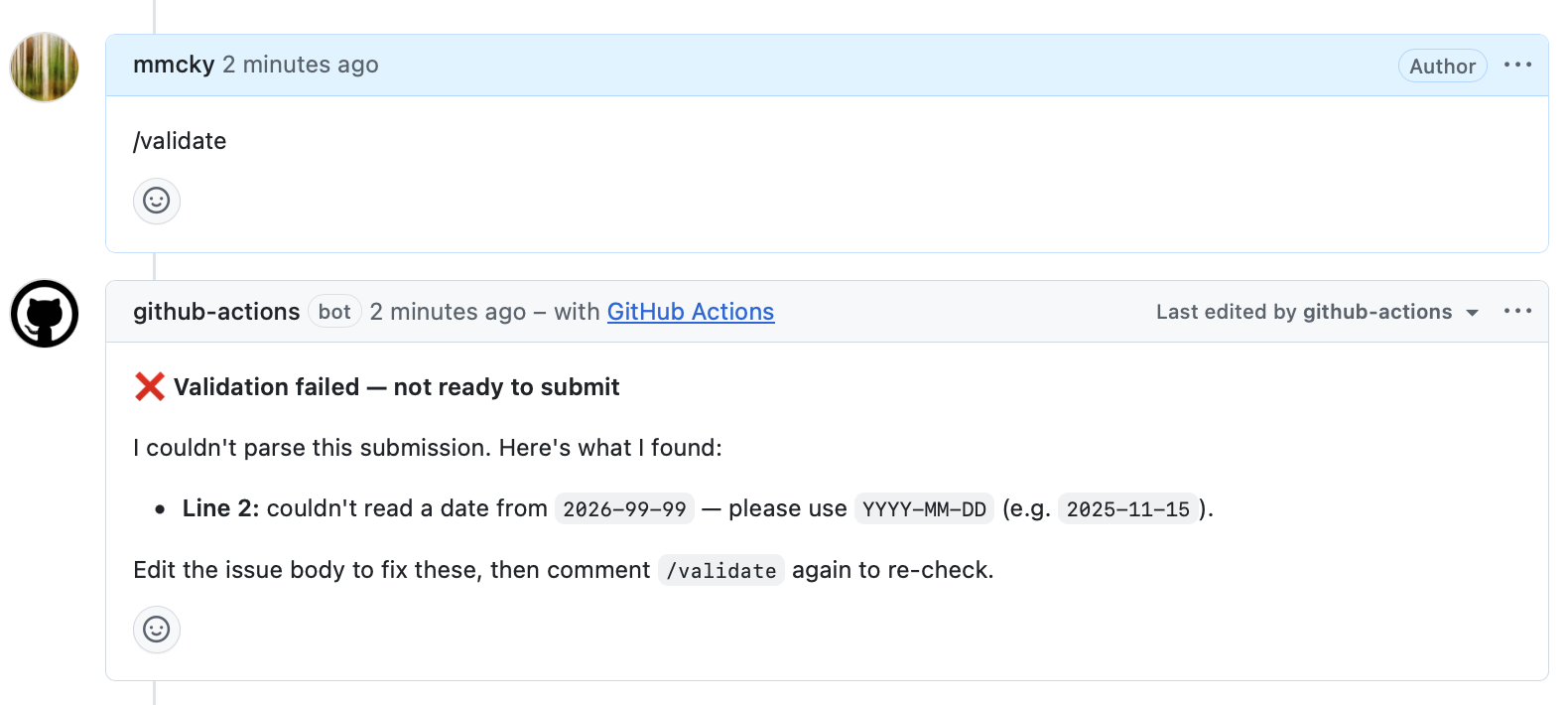
Common issues:
| What you see | What it means | Fix |
|---|---|---|
Line N: couldn't read a date from 'X' |
Date isn't in YYYY-MM-DD form |
Reformat the date |
Line N: amount must be > 0 |
Bad or missing amount | Use the contract's amount for that milestone |
Line N: duplicate ID 'X' |
Two rows share the same milestone ID | Remove the duplicate (you can't claim the same milestone twice in one submission) |
Milestone Entries section is empty |
No rows, or only the header row | Add at least one data row |
Warning: milestone ID 'X' is not in this contract's schedule |
Non-blocking — the ID you cited isn't in the contract's milestones[]. Usually a typo. |
Double-check the id you copied from the contract. The submission still parses; your admin will catch the mismatch during PR review. |
Fix the issue, save, and run /validate again. The bot updates the
same comment in place.
5. Submit
When validation passes, post:
/submit
Or apply the submit label to the issue.
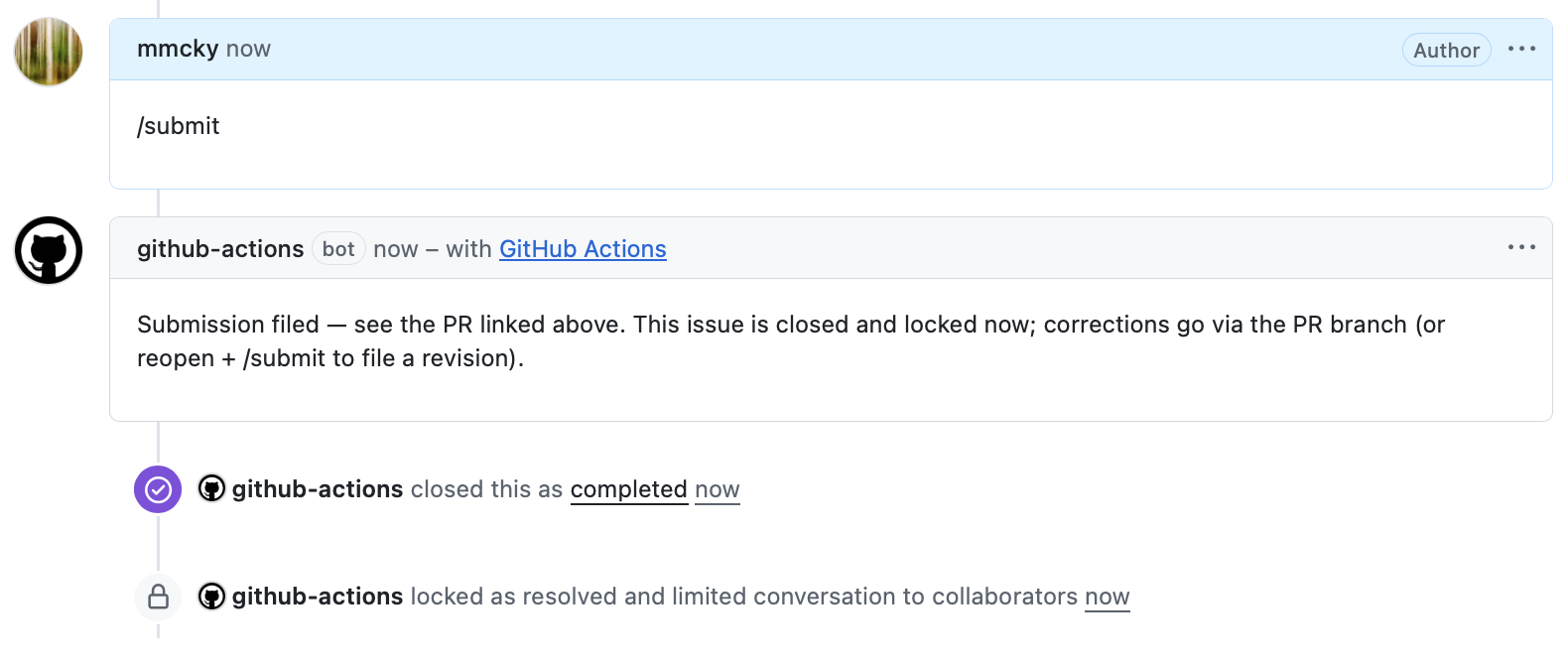
Within ~30 seconds:
- A Pull Request opens with the invoice YAML, a rendered PDF, and a PNG preview.
- Your QuantEcon administrator is automatically requested as reviewer.
- The originating issue is closed and locked.
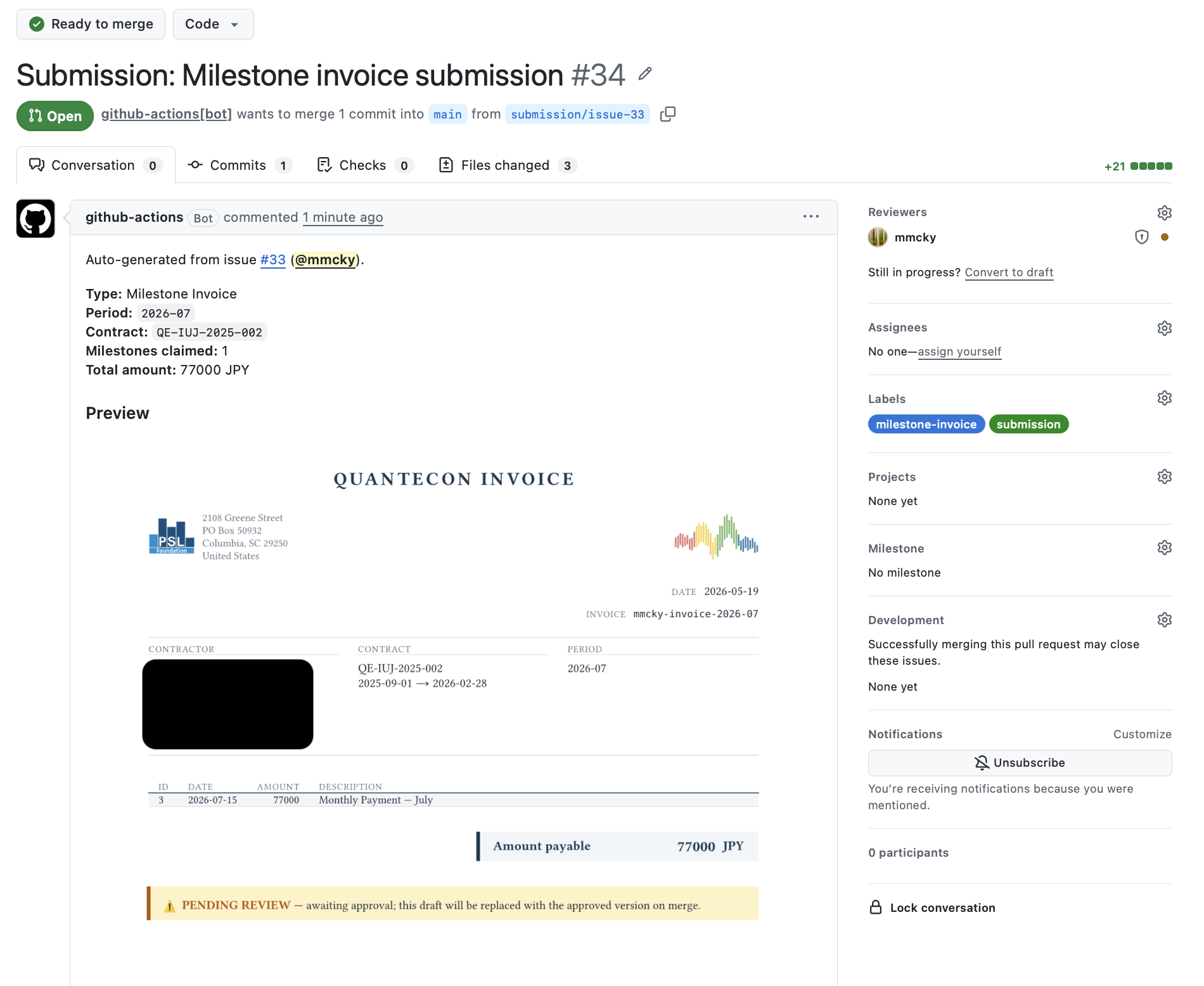
You don't need to do anything with the PR — your administrator reviews, verifies the milestone amount matches the contract, and merges.
6. After submission
Once your administrator merges the PR:
- The PDF is re-rendered with approval metadata.
- Your contract's running ledger issue is updated with the approved claim.
- A confirmation email is sent to the QuantEcon payment processor.
- You receive a notification on the original issue.
Payment processing happens outside GitHub on the fiscal host's normal cycle.
Filing multiple invoices in the same period
If you deliver two milestones in the same month, you have two options:
- Bundle them in one submission (the catch-up pattern above) — multiple rows in a single invoice. Use this when both milestones are conceptually one invoice (e.g. monthly billing for a multi-stream project).
- File two separate invoices — open two issues, each citing one
milestone. The second submission's ID automatically gets a
-Bsuffix (e.g.mmcky-invoice-2025-11-B) for uniqueness; the engine treats them as fully independent claims. Use this when the two milestones are different deliverables that warrant separate invoices.
Corrections after submission
- Before you submit — just edit the issue body. Re-run
/validatewhenever you want. - After you submit, before the PR merges — your administrator can request changes via standard PR review.
- After the PR merges, before payment — the issue can be reopened
and
/submitted again to file a revision. The original PDF is preserved as the audit trail; the new one supersedes it on the ledger. See Corrections and revisions for the details.
When something goes wrong
If anything looks off — the bot doesn't respond, the PR doesn't open, the rendered amount disagrees with the contract — contact your QuantEcon administrator. The issue stays in place as the record of what you tried to file.